
www.schorsch.com
With the first set of switches you can specify which entity types you wish to extract from your drawing and what kind of surface they should get converted to. By default all entities that define a surface in Autocad/Intellicad (opaque for the hide/shade/render commands) are activated. Others that can be used to simplify modelling but are rendered differentely in Autocad/Intellicad than in RADIANCE are off and have to be enabled by the user explicitly. All polygons will keep the orientation they were created with in Autocad/Intellicad, as determined by the right hand rule. Entities extruded by thickness will be inverted if their thickness value (or "PDSIZE" for point entities) is negative.
The meaning of the Entity Types is explained on a seperate page.
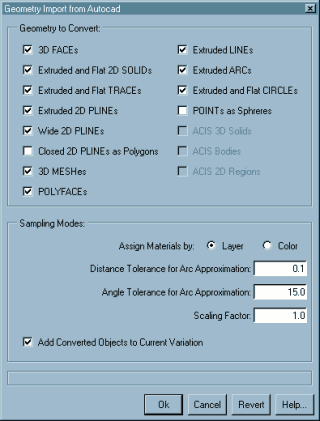
The remaining settings specify the details of how the geometry data will be converted.
Assign materials by:
Select the sorting method here out of the following.
Color
The Autocad/Intellicad color number as visible on the screen.
This is the default and will help you when you organize
your drawing "visually".
Layer
The layer of every subentity. Select this method if you
use a conceptual layering system independently from
screen display colors.
The concept of floating layers and colors within (nested) blocks is fully supported. That means a subentity within a block on the layer "0" and/or with the color "byblock" will appear on the layer and with the color of the containing block. This continues recursively if the block has those properties as well until a level with explicitly defined properties or the top level block is reached. Toplevel entities with the color "byblock" are assumed to have the color nr. 7 (white).
Distance Tolerance for arc approx:
Arc entities and arc segments of polylines have to be meshed
for the use in RADIANCE. The value you enter here specifies
how smooth these meshes will appear in the final image.
Higher values will make smoother surfaces.
The default of 0.1. It is recommended to make test for
optimized settings balancing file size and visual accuracy,
since the best settings depends on the size and scale
of your model.
Angle Tolerance for arc approx:
The orientation (normal vector) of neighbouring mesh elements
will not differ by more than this amount in degrees. The default
is 15.0 degrees, which usually gives reasonable results.
The effect of this setting is independent of model size
and complexity. Please note that very low values (eg. below 2.0
degrees) will lead to unreasonably big output files and may even
crash Autocad/Intellicad when running out of memory.
Scaling Factor:
The imported geometry will be scaled according to this factor.
The value set here will be used as the default for future
imports of views, measuring fields, and geometry data.
Note: It is highly recommended to scale all data imported into Rayfront to meter units, in order to avoid consistency problems with imported luminaires and the Raydirect plug-in.
Add Converted Objects to Current Variation
If this option is selected, then all converted objects
(layers/colors) will be added to the currently active variation.
If an object wasn't present in that variation before, then
it will be assigned the default_material. Otherwise,
it will keep the previously assigned modifier tree.
Ok - Accept the settings and close the dialog.
Next you will be prompted to select the entities you wish to convert in the Autocad/Intellicad graphics window. The actual conversion process may take a few minutes with large models.
Revert - Discard the entered values and reset all fields to the values they had when the dialog opened.
Cancel - Discard the new field and close the dialog.
Help... - Display this information.
| Up: |
User Manual Overview The Simulation Control Center Project Settings |
|
Previous: |
Project Location |